
Publication lists are required to allow subscribers to opt-out of sends to data extensions. Publication lists make it possible for subscribers to opt-out of a category of sends without opting out of all messages from your organization.
Access to the Flying Cork x UPMC back end data management tool is currently granted via email.
What are the Publication List Types?
Publication lists can be used to manage a subscriber’s status in a One-to-One relationship with data extensions or a One-to-Many relationship.
- One publication list is used to manage subscribers one data extension
- One publication list is used to manage subscribers one data extension
- If a subscriber unsubscribes, they are only unsubscribing from the communication associated with the pub list
- Commonly used for newsletters
- Can also be used for journey emails if they do not fit into a one-to-many configuration
- One publication list can be used to manage subscribers in many data extensions
- If a subscriber unsubscribes, they will be unsubscribed from all Journey emails using that publication list
- Commonly used for journey emails
- Email journey will appear in My Subscriptions first position to allow user to unsubscribe
- Limits load time concerns because email journeys share publication list rather than checking for subscriber status in multiple publication lists (i.e. Only one "Service Line" focused email journey would need to appear in the pref center instead of individual campaign journeys)
- Uses one friendly name for the email journey
- Conversion pixel will need to make sure the audience is active
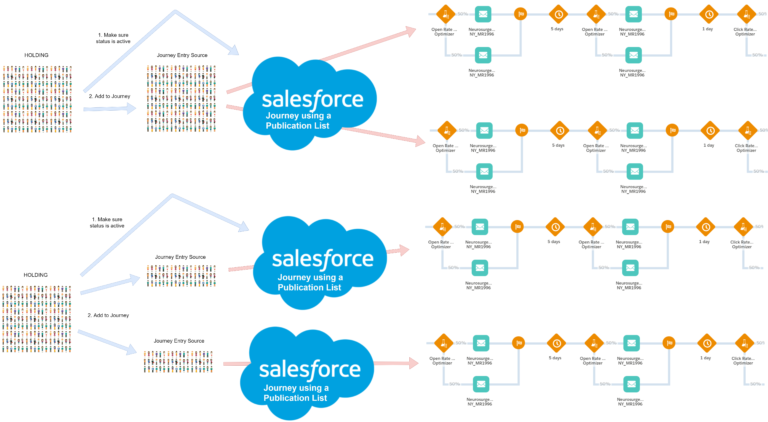
Journey/Newsletter in the First Position
A query string content block will need to be added to an email if a journey needs to show in the first position in the preference center for opt-out.
1. ) Add this content block to the email (above the email content):
Shared Content > _CorkMail > Headers > Publication List > Publication List Header Code
- %%[ SET @publication_list_id = “1036” SET @preference_querystring = Concat( “&publication_list_id=” ,@publication_list_id) ]%%
2. ) Replace List ID Value
3. ) Make sure you are using updated footers from Shared Content > _CorkMail > Footers
- UPMC generic footer used in most emails is “Footer Generic Logo (Expanded Social)”
- If you duplicate an old email for the build, it may have a footer that does not include the preference center query string. The footers in the folder above are updated to include the preference center query string.
4. ) Send yourself a live test and click “Manage my subscriptions” in the email footer to check if the campaign is in the first position of the preference center.